This section covers techniques for modifying existing effects.
•One simple way to edit your sequence is to place new effects over the old ones -- if that is what you want to do, then see the Adding Effects topic.
•You can also use cut, copy, paste, and repeat to modify a sequence -- which is covered in the clipboard topic.
Covered in this topic are:
•Double-Click Selection And Edit
A condensed list of keyboard shortcuts for modifying a sequence can be found in the Keyboard Shortcut Summary.
Double-Click Selection And Edit
|
Double-clicking on an effect in the sequencing grid will select all of the cells for that effect, then open a dialog window that allows the effect to be modified:
•Regular Channels - effect can be changed from intensity, shimmer, twinkle, or DMX intensity •RGB Channels - colors can be modified •SuperStar Effects - SuperStar is opened, allowing the effect to be edited •Other Motion Effects - the Motion Effect Generator is opened •Loops - the repeat count and speed can be modified
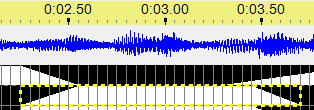
If the effect is modified and the user clicks “OK”, then those modifications are applied to the selected cells. In the following picture, one of the cells in the second row was double-clicked, causing all of the cells for that effect to be selected (including the ramp up and ramp down portions).
|

Nudge Tools
The nudge tools allow you to make small adjustments to existing effects in the grid. By default, each click of the button moves effects in 0.05 second increments. However, if you hold the Ctrl key down while clicking the button, effects will move in 0.25 second increments.
Effects can also be moved left or right by using the Skew Selection command.

Nudge tools on the toolbar
Nudge Effect Left 
When you click on this button, any effects completely or partially within the selected area will be moved to the left.
Nudge Effect Right 
When you click on this button, any effects completely or partially within the selected area will be moved to the right.
Shorten Effect 
When you click on this button, any effects completely or partially within the selected area will be shortened. The starting time of the effect remains the same.
Lengthen Effect 
When you click on this button, any effects completely or partially within the selected area will be lengthened. The starting time of the effect remains the same.
Changing Colors
You can change the colors of RGB Channel effects by:
•opening the Color Fade tool and select the new color
•selecting an area of the grid that contains the effects to be changed. These must be RGB Channel rows.
•right-click on the area, then opening the Existing Effects (foreground) Sub-menu, then selecting Apply Toolbar Color or Apply Toolbar Hue.
Changing Intensity
Tools to change the intensity of existing effects are accessed by right-clicking on the sequence grid, then opening the Existing Effects (foreground) Sub-menu.
Prompt For New Effect
You can modify a group of effects to all be a new effect that you choose. First select an area that contains effects you wish to modify, then either:
•right-click on the selection, open the Prompt For New Effect Sub-menu and select Modify Existing Effects, or
•use the Shift-M keyboard shortcut
This works with regular channels, RGB channels, and motion effect rows.
Toggle Tool
This command will toggle the effects in the selected area between on and off. Any that had been off will be turned on; all others will be turned off (note that this includes not just those that had been on, but also, for example, those that had been shimmers or fades).
You can invoke it by:
•Selecting the Toggle tool  on the toolbar, then selecting an area of the grid to toggle.
•Selecting an area on the grid, then right-clicking and select "Toggle" on the Advanced Tools sub-menu.
•Selecting an area on the grid, then using the "G" shortcut key
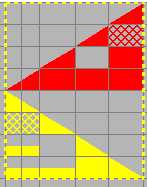
Before Toggle
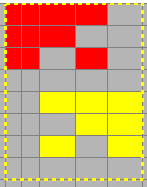
After Toggle