The Channel Conflicts & Bulk Changes tab of the Preview Design window has 2 functions:
1.It can be used to quickly identify and resolve props with conflicting channel assignments
2.It can be used change the channel assignments for multiple props at once (i.e. bulk change); for example, moving multiple props from the Aux A network to the Aux B network, or from one DMX universe to another.
The tab will show a green check mark if everything is OK, and a warning sign if there are channels conflicts. A filtered list of props is displayed down the left side. Clicking on a prop will list its channel assignments in the "Channels" area, where they can be changed. When clicking on a prop with a channel conflict, the list of conflicts will be shown in the "Prop Warnings" area.
This is the second of 5 tabs on the Preview Design window. The others are:
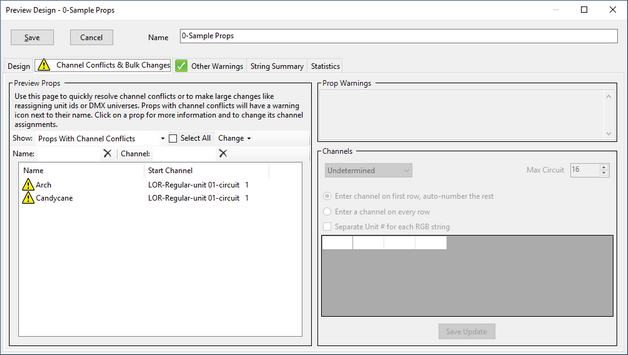
The Channel Conflicts & Bulk Changes tab
Sorting The List
The list of props can be sorted by Name or Start Channel by clicking the column heading. Clicking the column heading a second time will reverse the direction of the sort.
Filtering The List
There are 3 filters that can be applied to the list of props. By default, the list is filtered to show only channel conflicts.
The "Show" Filter
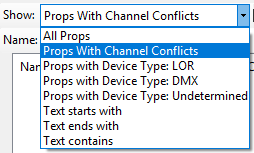
From this drop-down box you can choose to display:
•All props in the preview
•All props with channel conflicts
•All props with device type "LOR" (as shown in the channel section of the Prop Definition window)
•All props with device type "DMX"
•All props with device type "Undetermined"
•Text starts with -- when using the Prop Name or Channel filters, compare the entered text with the start of the name or channel
•Text ends with -- when using the Prop Name or Channel filters, compare the entered text with the end of the name or channel
•Text contains -- when using the Prop Name or Channel filters, select the prop if the entered text appears anywhere within the name or channel. This is also the text comparison method used when any of the first 5 drop-down options is selected.
Prop Name Filter
Type some text into the "Name" box to filter the list by prop name. In the example below, only props with the word "star" in their name are shown. If the "Show" filter is set to "Text starts with" or "Text ends with", then only that part of the prop name will be matched; otherwise any prop name that contains the text that was entered will be matched.

Channel Filter
Type some text into the "Channel" box to filter the list by start channel. In the example below, only LOR props with the word "aux b" in their channel name are shown. If the "Show" filter is set to "Text starts with" or "Text ends with", then only that part of the channel name will be matched; otherwise any channel name that contains the text that was entered will be matched.

Resolving Channel Conflicts
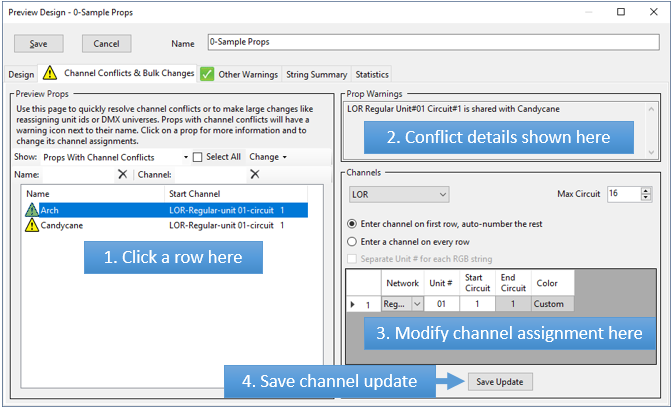
Steps for resolving a channel conflict
1.Click on a row with a  warning sign.
2.Note that conflict details shown in the "Prop Warnings" area. Multiple conflicts may be listed here if multiple props all have the same channel assigned, or the prop uses multiple channels and those channels conflict with other props.
3.Determine the new channel that should be assigned to this prop and make the changes in the "Channels" area. You might find a quick review of the information shown on the String Summary tab helpful in determining the correct channel. Alternatively, you could go back to the Design tab, double click on the prop name, and change the channel information in the Prop Definition screen (but that would take longer).
4.After changing the assigned channel, click the "Save Update" button to commit the change. If you go back to step 1 without performing this step, your changes will be lost.
Making Bulk Changes
"Bulk changes" means that you want to modify the channels assignments of many props at once. To do this, you first need to select all of the props that you are going to change. You could do this by clicking on the first prop, then Ctrl-Clicking on all of the other props that you want to change. However, it is often faster to use the Filter Tools to narrow the list of props to just those that need to change, then clicking the "Select All" check box to select them all.
After selecting the desired props, then you can select an action from the "Change" menu (these actions can also be accessed by right-clicking on the selected props).

The Change menu
Renumber Strings
Selecting "Renumber Strings" from the Change menu (or right-clicking on the prop list and selecting "Renumber Strings") will open a dialog that will allow you to consecutively renumber the selected props. At the same time, you can change the selected props from LOR to DMX or vice versa.
When you renumber, the number of channels used by each prop is taken into account. For example, if you are renumbering 3 props and props 1 and 3 each require 1 channel, but the second prop requires 6 channels; then if you renumber starting at channel 9, the new channel numbers will be:
•First prop - channel 9
•Second prop - channels 10-15
•Third prop - channel 16

Set LOR Network
The selected props will be moved to the LOR network you specify. For example, you could use this function to move props from the Regular network to Aux A.

Set LOR Unit Id
The selected props will be moved to the LOR unit id you specify. For example, you could use this function to move props from unit 10 to unit 11.

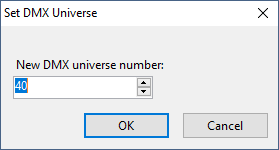
Set DMX Universe
The selected props will be moved to the DMX universe you specify. For example, you could use this function to move props from Universe 2 to Universe 12.
Delete Props
The selected props will be permanently deleted from the preview. This can be useful if a preview contains items that are no longer needed and should be removed. Sometimes this situation can even be the source of channel conflicts.