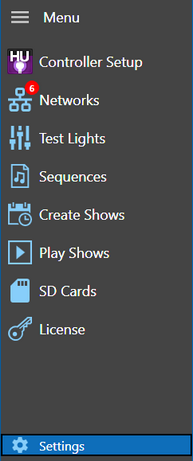
Settings is listed at the bottom of the Control Panel's main menu. Here you can set values that control the look or behavior of the program, but items you should seldom need to change.
Launch At Start-up
If you wish, you can set it up so that the Control Panel will automatically be run whenever your computer starts up (and therefore you won't have to start it via the Start menu anymore). To do this, select "Launch at Startup" in the Settings section header.

Launch at Startup
Settings Tabs

The Settings tabs
Settings are divided into 6 categories. Click on a tab to move to the desired category.
•Communications (Comm)
Theme
Theme selection
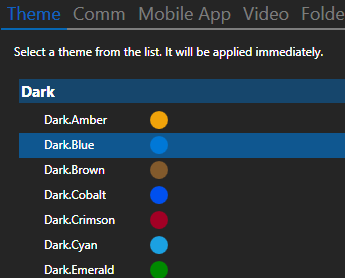
Themes are grouped into 2 categories: Dark and Light. Dark themes have a gray background with white text. Light themes have a white background with black text. Every theme has a highlight color. So "Dark.Blue" is a dark theme with a blue highlight. Click on the theme you want and the change will be applied immediately.
Communications
Communication tab
Comm Listener Port
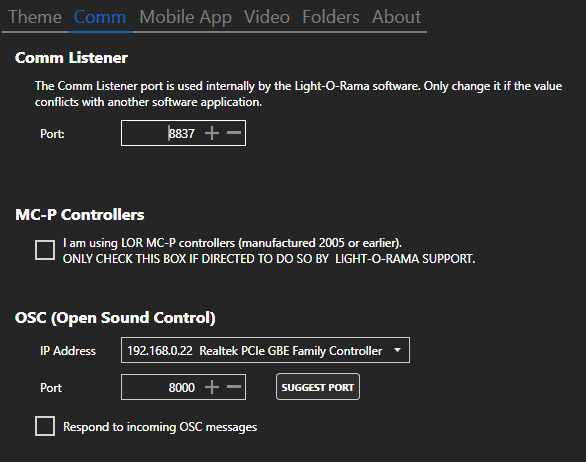
This section can be used to configure the IP port that the Control Panel listens on for lighting commands from the Sequencer and Hardware Utility. The default port of 8837 should work for nearly all users, but can be changed here if it conflicts with other software on your computer.
MC-P Controllers
If you are using Light-O-Rama MC-P controllers purchased prior to 2005, then you should enable MC-P compatibility mode by checking this box. If you do not check this box, then you will see odd behavior on circuits 9 through 16 of such controllers.
Old MC-P compatibility mode only affects controllers on the Regular LOR network; those on Aux networks are unaffected. Therefore, make sure to put all such controllers on your Regular network.
NOTE: Enabling Old MC-P compatibility mode may have a significant effect on communications speed for the regular network. It is therefore strongly recommended that you do not enable it without reason, and that if you do enable it, you should consider moving any other Light-O-Rama controllers (which do not need Old MC-P compatibility mode) off of the Regular network, and onto one or more auxiliary networks.
OSC (Open Sound Control)
Open Sound Control (OSC) is a protocol for networking sound synthesizers, computers, and other multimedia devices for purposes such as musical performance or show control. Learn more in the Wikipedia article. This is an optional feature meant for advanced users. It is not required to make you show run.
The Control Panel can listen for incoming OSC messages that will control certain aspects of your show. A complete list of messages can be found in the OSC Messages topic.
In this section you need to specify which network (IP address) and on which port the Control Panel will listen. The port listed here must match the OSC application that is sending the messages.
The "Respond to incoming OSC messages" check box turns this function on or off.
Mobile App

Mobile App tab
Here you set the "Display Number". If you want to use your Light-O-Rama license to control 2 separate displays, each display controlled by its own computer, then you will need to designate one display as "Display 1" and the other as "Display 2". Then in the mobile app, you specify which display you want to control.
If you only have 1 display, then leave this setting at "1".
Video

Video tab
This setting controls how sequences with video media (e.g. AVI, WMV, or MP4) should be handled. If you select "Display videos in a window" or "Display videos full screen" in the top section, then you can select when the video window is displayed in the bottom section.
If you want video displayed full screen on a certain monitor or projector, follow these steps:
1.In the top section of Video Settings select "Display videos in a window" (first option).
2.In the bottom section of Video Setting, select "Whenever Play Shows is set to Show Player or Live Player" (second option).
3.Use Show on Demand to start your show with video media
4.Move the video window to the desired monitor by dragging the title bar with your mouse
5.Stop the show. The video window should still be open
6.Go to Settings > Video and select full screen. The existing window should immediately go full screen on the monitor it was on.
Your video settings will be saved automatically.
Folders
Folder tab
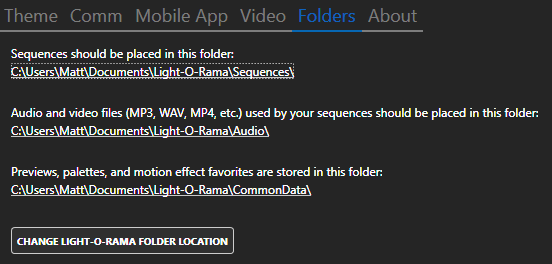
This tab lists key folders where your Light-O-Rama files are stored: sequences, audio/video, and previews. Clicking any of the underlined directories will open a new Windows File Explorer window displaying that directory.
Click the "Change Light-O-Rama Folder Location" button to change the default folder where your audio and sequence files are stored. This will display a message telling you to close ALL Light-O-Rama programs, and then re-open the Control Panel. At that point, you will have the opportunity to change the location of your Light-O-Rama folder.
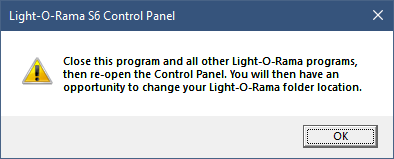
You should back up your existing Light-O-Rama folder before initiating this action. Use with caution!
About
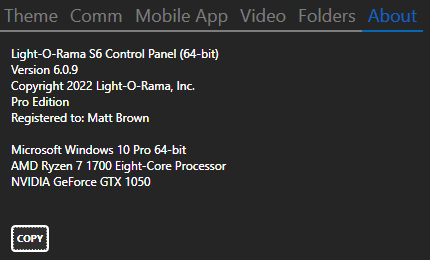
About tab
The About tab shows information about the Control Panel program and some information about your computer. The "Copy" button can be used to copy this information to the clipboard. When creating a ticket with the Light-O-Rama Help Desk, copying and then pasting this information into your ticket can help Light-O-Rama personnel resolve your issue more quickly.