The "Previews" window is normally docked on the right side of the main Light-O-Rama S5 Sequencer. To keep the window open, click the pin icon in the upper right corner of the window. From the Preview window you can create, modify, delete, and import/export previews.
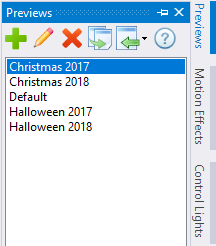
From here you can:
|
Double-click on a preview name to edit it. This will open a Preview Design window with the selected preview loaded. |
|
Click the "+" icon to start a new preview. This will open an empty Preview Design window ready for you to create a preview from scratch. |
|
Click on a preview name and then click the pencil icon. This will open a Preview Design window with the selected preview loaded. |
|
Click on a preview name and then click the red “X” button. You will be prompted to confirm that you want to proceed with the deletion. Click “Yes” to delete or click “No” to cancel. If after deleting it you find that you want to get it back, assuming you have a sequence associated with that preview you can just open that sequence and the preview will be imported from it. |
|
Click on a preview name and then click the “Copy” button. You will be prompted for the name of the new preview. If you keep a copy of a preview for each year of your display (recommended), then this is the command you should use to copy one year's preview to the next (e.g. 2018 to 2019). |
|
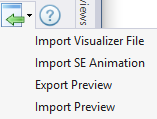
Click the Import icon to open a menu that allows you to:
•Import a Visualizer (LEE) file. You will prompted to select an LEE file and it will then be imported into a new preview. During the import process, Visualizer fixtures will be converted to props, and Visualizer props will be imported as preview groups. •Import a Sequence Editor Animation. You will be prompted to select the LMS or LAS sequence file that contains the animation. •Export an S5 preview. You will be prompted for the file name. This creates a file with an LORPREV extension. •Import an S5 preview. You will prompted to a select a file with an LORPREV extension. |
|
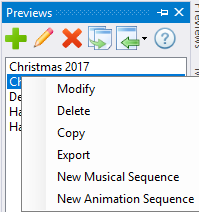
Right-click on a preview name to open a menu that allows you to:
•Modify the selected preview in a Preview Design window. •Delete the selected preview. You will be prompted to confirm that you want to proceed with the deletion. •Copy the selected preview. You will be prompted for the name of the new preview. •Export the selected preview. You will be prompted for the file name. This creates a file with an LORPREV extension. •Create a new musical sequence using the selected preview. •Create a new animation sequence using the selected preview. |