The Prop menu of the Pixel Editor's Preview Design is only displayed when the item list is in Prop Mode.

Commands Available:
| • | New |
| • | Copy |
New
Select “New” to create a new prop. This will open the Prop Definition window. After saving the new prop, it will be added to the Item List and displayed in the design window on the right.
Modify
To modify a prop’s definition, you can double-click on the prop’s name, or you can single-click on it and select “Modify” from the Prop Menu. Either method will open the Prop Definition window.
Copy
The “Copy” command is very helpful in creating a collection of props that all look the same, such as a series of arches or mini-trees. This opens a window where you can specify how many copies should be made. If the source name has a numeric suffix, then that number will be automatically incremented for each copy. After the “Make Copies” button is pressed the new copies will be displayed
Here is the process for copying a prop:
| • | Select the prop in the list that will be the source of the copy. For props with a numeric suffix, this prop’s name should end with “1”, “01”, “001”, “(1)”, “(01)”, or “(001)”. If you have created 5 arches and then decide you need more, you can select the last one (e.g. “Arch 05”) and the Copy command will continue your number sequence from there. |
| • | Select “Prop”, then “Copy” from the menu. This will open the Copy window. See the picture below for an example. |
| • | The “Base Name” field should already be filled in for you. If you are creating a non-numeric sequence such as “Left”, “Center”, “Right”, then you might want to edit the base name to remove the suffix in the source prop’s name. |
| • | Select the number of copies to make. The New Names list on the right will automatically update as this value is changed. |
| • | If the source prop’s name has a numeric suffix, then the “Starting Number” field should be set automatically. |
| • | The “Suffix” field should be set automatically, but can be changed if desired. For example, if your source prop does not have a numeric suffix, but you want the copies to be numbered, then change this field to the desired number format. |
| • | You can change the automatically generated names by double-clicking any entry in the “New Names” list and making edits as desired. |
| • | After making all of your edits, click the “Make Copies” button. This will close the Copy window and the new copies should appear in the preview design window. |
| • | While the copy process takes care of prop naming for you, it does not change the channel information – all of the copies will have the same channel information as the source prop. After the copy completes, you will need to double-click on the name of each copied prop in the list and when the Prop Definition window opens, modify the channel information for that prop. |
The picture below shows the Copy command being applied to a prop named “Arch 01”. The numeric suffix is automatically detected and the fields set accordingly. The only action is to set the desired number of copies (4 in this example).

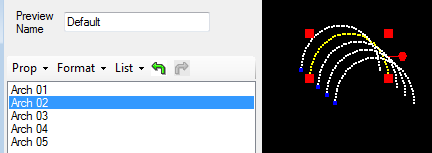
Result of making 4 copies
Delete
Select “Delete” to delete a prop. You will be asked to confirm before the delete actually takes place.
Layout
Select “Layout” to view a printable layout of your prop with channel information for every string or pixel. This can be quite large depending on the number of pixels involved.
Create Group
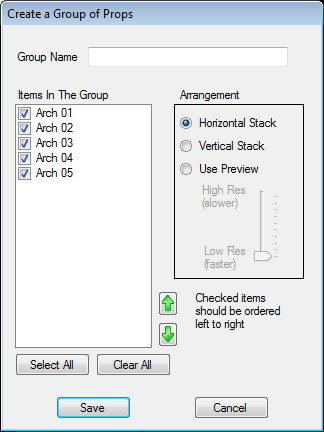
Select the props you want to place in a group, then select “Create Group” from the Prop menu. The “Create Group of Props” window will open (an example is shown below). For groups with a horizontal or vertical stack arrangement, the order of the items listed is important. A message below the arrangement box will inform you of the proper order.