This tab on the Light-O-Rama Visualizer's Options dialog controls whether or not tooltips are displayed on the main editor screenand, if they are displayed, how they are displayed. Tooltips can give you a quick way of looking at a fixture or prop's parameters and data.
•Show Fixture/Prop Tooltips in Edit Mode
•Show Fixture Properties Even in Prop Mode
•Show the Following for Fixtures
•Show the First 'x' Assigned Channels
•Display up to 'x' Associated Fixtures
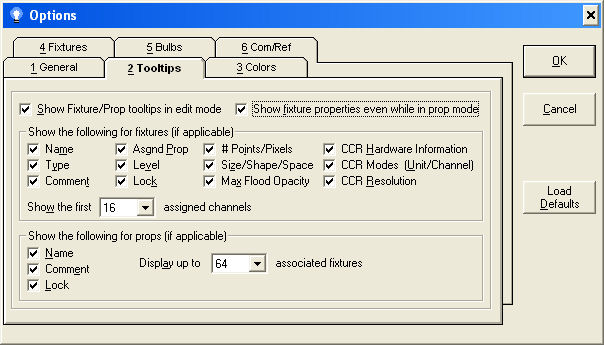
The Tooltips Options tab
Show Fixture/Prop Tooltips in Edit Mode
Turns tooltips on or off.
Show Fixture Properties Even in Prop Mode
When pointing at an object in the editor in prop mode, the prop parameters are displayed. If this option is checked, the Visualizer will show fixture properties regardless of what mode the editor is in.
Show the Following for Fixtures
Various fields that the user may or may not feel are important. If you don't want to see a particular parameter in the tooltips, unselect it.
Show the First 'x' Assigned Channels
If you set this value to something other than "None", the system will display this number of defined channels, starting with the first.
Show the Following for Props
Various fields that the user may or may not feel are important. If you don't want to see a particular parameter in the tooltips, unselect it.
Display up to 'x' Associated Fixtures
If set to a value other than "None", the system will show the names of this many fixtures associated to a prop, starting with the first.